
Configuring Connection Objects
This section describes how to set up the required configurations to sync data from Sentinel Platform to the dashboards on Sentinel Pulse app.
In this section:
>Configuring Account, User, User Role, and Account Customer Mapping Objects
>Running Data Sync for Objects
Configuring Account, User, User Role, and Account Customer Mapping Objects
To configure connection objects:
1.Click App Launcher  and search for Data Manager.
2.In Data Manager, click Connections. All the objects configured to sync are listed.
3.Click the SFDC_LOCAL drop-down and select Edit Objects.
4.In the Search Objects box, select the following objects:
 Account
 For Account object, ensure that the following 26 fields with the API names listed below are selected.
•Id
•MasterRecordId
•Name
•Type
•ParentId
•BillingStreet
•BillingCity
•BillingState
•BillingPostalCode
•BillingCountry
•ShippingStreet
•ShippingCity
•ShippingState
•ShippingPostalCode
•ShippingCountry
•Phone
•PhotoUrl
•Industry
•AnnualRevenue
•NumberOfEmployees
•OwnerId
•CreatedDate
•LastModifiedDate
•LastActivityDate
•LastViewedDate
•AccountSource
User
For User object, ensure that the following 26 fields with the API names listed below are selected.
•Id
•Username
•LastName
•FirstName
•Name
•CompanyName
•Division
•Department
•Title
•Street
•City
•State
•PostalCode
•Country
•Phone
•MobilePhone
•Alias
•IsActive
•TimeZoneSidKey
•UserRoleId
•ReceivesInfoEmails
•UserType
•ForecastEnabled
•FullPhotoUrl
•SmallPhotoUrl
User Role
For User Role object, ensure that the following 6 fields with the API names listed below are selected.
•Id
•Name
•ParentRoleId
•RollupDescription
•OpportunityAccessForAccountOwner
•CaseAccessForAccountOwner
SentinelPulse__Account_Customer_Mapping__c
For SentinelPulse__Account_Customer_Mapping__c object, ensure that all the fields are selected.
5.Click Save.
6.On the SFDC_LOCAL screen, click the down arrow to the right of Account.
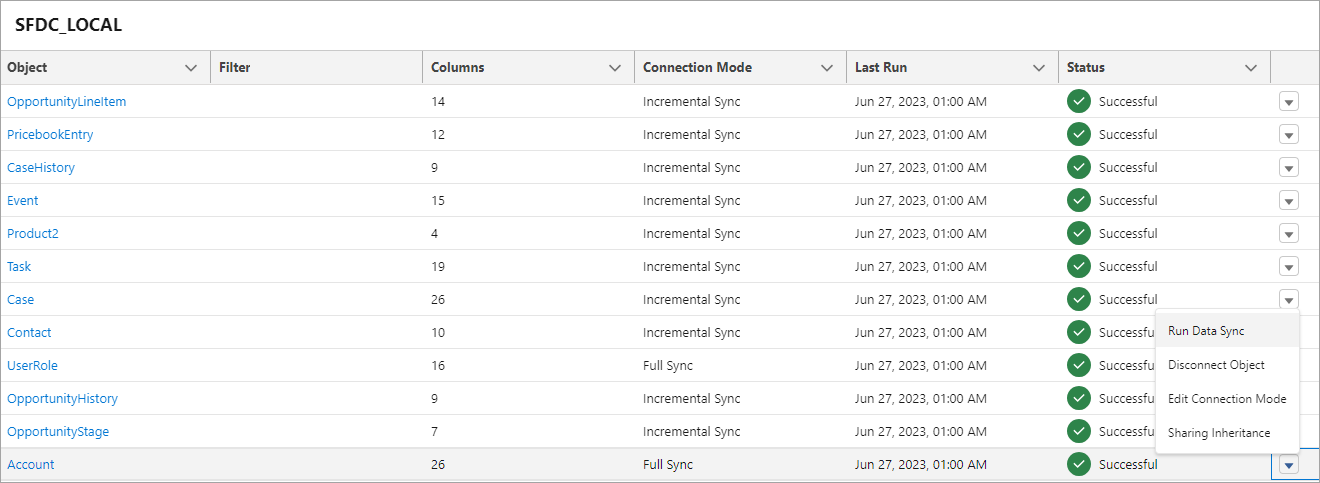
7.Click Sharing Inheritance and select Sharing inheritance on.
8.Click Save.
Running Data Sync for Objects
Perform the following steps for each object that you configured above:
1.On the SFDC_LOCAL screen, click the  drop-down on the right end of the objects—Account, User, User Role, and Account Customer Mapping objects.
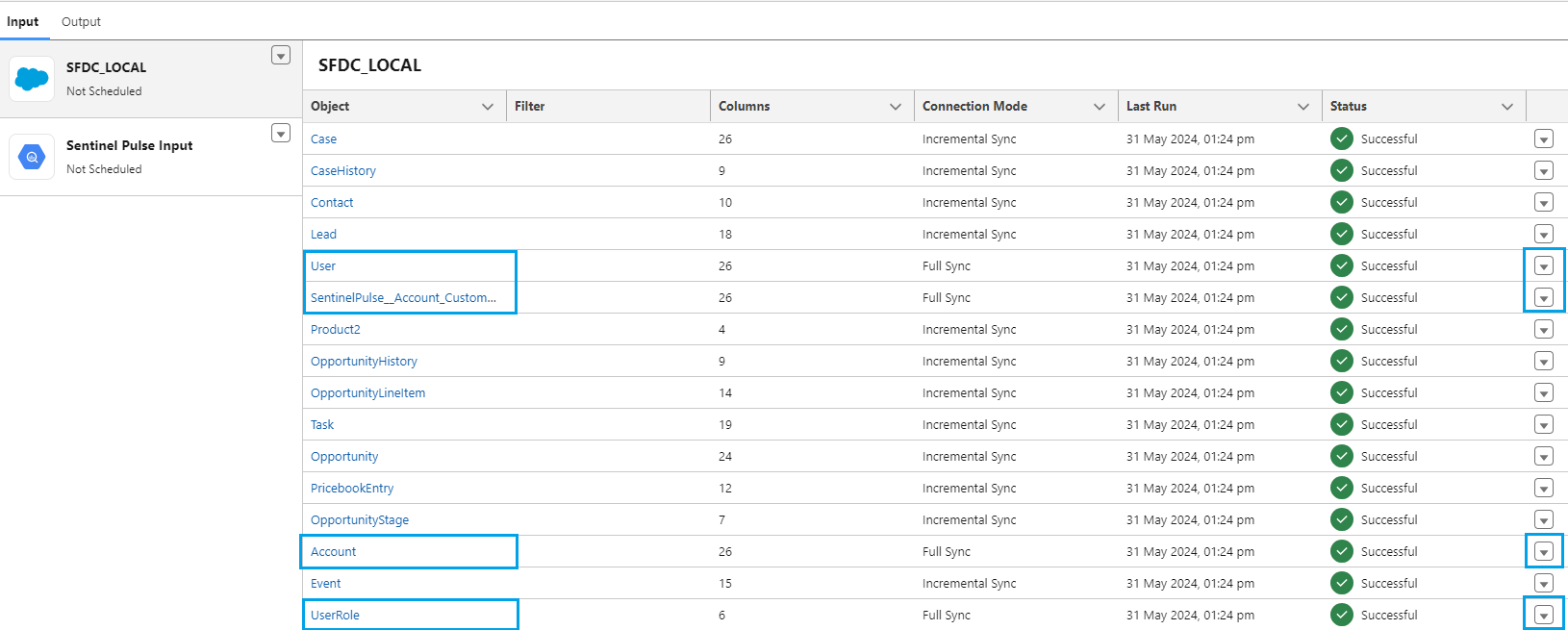
2.Click Edit Connection Mode and select Full Sync.
3.Click Save.
After configuring the connection objects, run data sync to make the data available in Salesforce Data Pipelines to build recipes. You can then schedule subsequent syncs to regularly update the data.
NOTE If you see Account object sync status as 'Failed' due to too many sharing rules, perform the steps provided in the article on Thales Support Portal to resolve this error.